Kids Computer: Play and Learn
- 3.2
- Rating
- 5.00M
- Installs
- Free
- Price
 Analysis by App-foxy
Kids Computer: Play and Learn is the kind of educational game I would use as a gentle first step into digital learning, not as a replacement for a teacher, workbook, or carefully planned lesson. It brings together early activities around letters, numbers, colors, puzzles, and animal sounds, so a child can move between different types of practice instead of facing one long exercise. My overall impression is positive but measured: the broad selection makes it approachable, while the modest average rating of 3.3 shows that it will not be the perfect fit for every family.
What makes it interesting is its simple idea of turning a phone or tablet into a small children’s learning station. The game is free, aimed at everyone, and developed by UVTechnoLab. It has reached over a million installs, which suggests that many families are at least willing to try this style of learning tool. I see its best value in short, supervised sessions when a child needs something more purposeful than random screen time.
How the learning activities work in everyday use
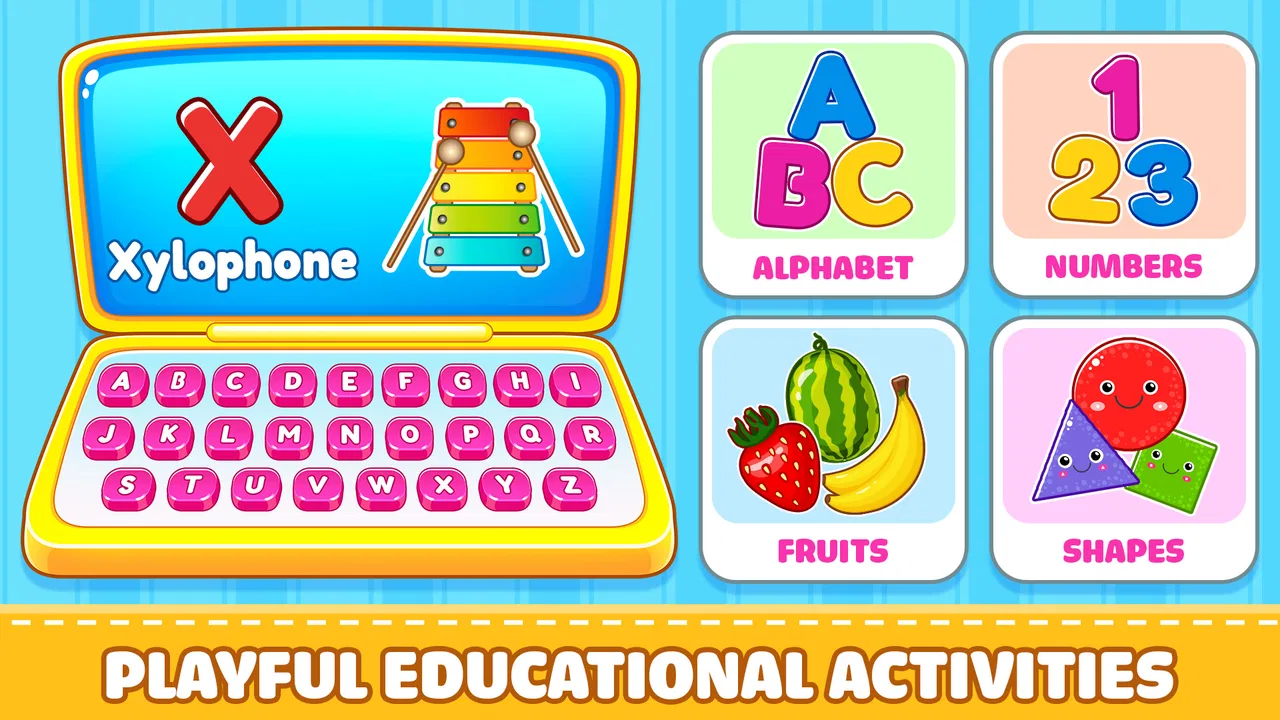
The app’s central strength is variety. Alphabet practice can support early recognition, number activities can introduce counting concepts, color exercises can build basic visual vocabulary, puzzles can encourage matching and problem solving, and animal sounds can make the experience feel playful rather than like a lesson. These subjects belong together for young learners because they cover different kinds of attention: memory, recognition, listening, visual discrimination, and simple decision-making.
You May Also Like

 Blood Strike: 2.5 Anniversary
Blood Strike’s Loadouts Turn Every Drop Into a Tactical Gamble
A close look at Blood Strike’s custom loadouts: how fast access to signature weapons reshapes its battle royale rhythm, rewards preparation, and narrows the gap between fights.

 Pandora - Music & Podcasts
Pandora’s Music Is Easy to Start, but Harder to Recover
Pandora’s strength is its low-effort path from a seed to a station. Its weak spot is how much confidence it asks you to place in connection, setup, and quiet recovery.

 8 Ball Pool
 Is Built on Rivalries, Rematches, and Routine
A close look at the rivalries, rematches, shared routines, and unanswered safety questions that turn a quick pool match into a persistent mobile community.

 Samsung Music
’s Quiet Strength Is Playing What You Already Own
Its reach comes less from spectacle than from dependable access to a personal library. That simplicity is both the app’s strongest retention engine and its ceiling.

 AccuWeather: Weather Radar
AccuWeather Review: A Quick, Clear Forecast for Everyday Decisions
For everyday plans, the best forecast is the one you can understand quickly. AccuWeather makes rain timing, radar, and local conditions easy to act on, with a few trade-offs.

 Hill Climb Racing
Why Hill Climb Racing Still Turns Crashes Into One More Run
A tiny car, a bumpy hill and one more upgrade: Hill Climb Racing keeps resurfacing because its simple chaos makes every near-miss feel personal.
More From Our News Desk



I would not approach it as a game with a long story or a complicated progression system. Its appeal is closer to a collection of small learning moments. That makes it easy to open when a child has only a few minutes, and it also means the adult can choose an activity that matches the child’s mood. A child who is tired may respond better to animal sounds than to numbers, while a child who wants a challenge may be more interested in a puzzle.
That flexibility is useful in a realistic family routine. Imagine a parent preparing dinner while a preschooler sits nearby with a tablet. Instead of handing over an unrelated video, the parent can choose a short activity involving colors or letters, then ask the child to name what appeared on screen. The app supplies the prompt, but the conversation afterward turns passive tapping into a more meaningful learning exercise.
One practical tip is to treat each visit as a starting point for an offline activity. After an alphabet session, I would ask the child to find an object in the room beginning with a familiar letter. After colors, I would invite the child to sort toys by color. Animal sounds can lead to a guessing game without the device. This approach prevents the game from becoming an isolated screen habit and gives the child a chance to apply the idea in the real world.
Why the mixed subject approach works
Young children do not always learn in a predictable order. A child may recognize several colors but still struggle with counting, or enjoy sounds while avoiding letter practice. Because Kids Computer: Play and Learn combines several foundations, it gives parents a way to notice which areas naturally hold attention. That can be more useful than forcing every session into the same lesson.
The mix also reduces the boredom that can come from repeating one drill. If a child loses interest in letters, moving to a puzzle can preserve the learning routine without turning the experience into a battle. I consider that a real advantage for families who want a flexible introduction to educational apps rather than a rigid curriculum.
There is a trade-off, though. A broad collection may feel less deep than an app devoted entirely to phonics, early mathematics, or handwriting. If your main goal is systematic reading instruction, this game is unlikely to provide the same focused path as a specialized literacy product. Its strength is range, not detailed mastery of one subject.
What parents should do before handing it over
I recommend that an adult try the activities first. This is not because the game is difficult for a parent, but because a quick preview helps you understand which sections suit your child’s current ability. It also lets you decide whether the child should explore freely or follow a small plan, such as letters first and a puzzle afterward.
For a younger child, sitting together for the first few sessions is especially valuable. You can model how to respond, repeat new words, and notice whether the child is guessing randomly or actually recognizing the answer. The game can present an exercise, but it cannot know whether a correct tap came from understanding, trial and error, or memorizing a screen pattern.
I would also keep sessions short and stop while the child is still engaged. Educational value tends to drop when the child is tapping simply to continue. A brief routine with discussion is more useful than leaving the game open for a long period without interaction. This is one of the less obvious ways to get more from a simple children’s app: the adult’s timing and questions matter as much as the activity itself.
Where it feels less convincing
The main weakness is that variety can make the experience feel lightweight for children who are ready for structured progression. A child who already knows basic letters, numbers, and colors may move through the familiar material quickly and then look for something with more depth. In that situation, a dedicated learning app with clearer stages, richer explanations, or more advanced challenges may be a better choice.
The average rating of 3.3 is worth considering before downloading. It does not automatically make the game poor, but it is a signal to keep expectations realistic. I would view it as a supplementary activity rather than a polished, complete educational program. Families looking for detailed progress tracking, a carefully sequenced curriculum, or a strong parent dashboard should compare it with alternatives that are built specifically around those needs.
Another limitation is the possibility of uneven engagement between sections. A child may love animal sounds and puzzles but show little interest in numbers, or enjoy colors while finding letter activities too repetitive. That is not necessarily a flaw in the concept, but it means the app’s usefulness depends on finding the parts that match the child’s developmental stage. I would not judge the whole experience after one activity, yet I also would not insist that every section must work equally well.
The game should also be used with realistic expectations about learning. Recognizing a letter on a screen is not the same as understanding its sound in a word. Matching a color is not the same as using color vocabulary naturally. I would always pair the digital activity with speaking, pointing, sorting, drawing, or physical play. Without that extra step, the app risks becoming a series of correct taps rather than a foundation for broader skills.
Who will get the most from it
I think this game is best suited to families with young children who are beginning to explore basic concepts and enjoy changing activities. It can work well for a child who needs a friendly introduction to educational screen time, especially when a parent wants several simple subjects in one place. It may also suit grandparents, babysitters, or older siblings who need an easy activity to share with a child without preparing a full lesson.
It is particularly useful for short transitions: a few minutes before leaving the house, a quiet activity while waiting, or a calm exercise after a child has finished another task. Because the subjects are familiar and approachable, the adult does not need specialist knowledge to participate. Asking “Which color did you see?” or “What sound does that animal make?” is enough to extend the interaction.
I would be more cautious about recommending it to families whose children need accessibility options, advanced academic content, or a tightly controlled learning pathway. I would also skip it if the goal is an app that independently teaches reading or mathematics from beginning to end. In those cases, a specialized alternative is likely to offer clearer instruction and more measurable progression.
The age rating of Everyone makes the game broadly suitable from a content perspective, but that does not mean every activity will match every child’s ability. Parents still need to choose appropriate tasks and supervise use, particularly when a child is very young or easily frustrated. A general age label cannot replace observing how the individual child responds.
Device and download considerations
Kids Computer: Play and Learn is free, which removes the biggest barrier for families who want to test it before committing money. It runs on Android versions starting with 6.0, so it is not limited to only the newest devices. That is helpful if the child uses an older family tablet rather than a current phone.
The current version is 7.0.0, and the game was released on January 6, 2025. Those details matter mainly because parents may want to check that the device meets the minimum software requirement before trying it. I would also make sure the screen is large enough for a child to tap comfortably and that the device is placed somewhere stable, since small controls and accidental touches can quickly turn a simple activity into frustration.
Since it is free, I would still approach the download as a trial rather than an automatic long-term solution. Let the child try several different sections over a few days, observe whether the activities encourage conversation, and then decide whether it deserves a regular place in the routine. The install count shows that it has broad reach, but popularity alone cannot tell you whether its style suits your child.
How it compares with familiar alternatives
Compared with alphabet-only apps, this game is less focused but more varied. A specialist literacy app may be preferable when a child needs repeated letter-sound practice, while Kids Computer: Play and Learn is more convenient when you want letters alongside colors, puzzles, numbers, and sounds. Compared with general puzzle games, it provides a clearer educational purpose, although a dedicated puzzle title may offer more demanding problem solving.
It also occupies a middle ground between an educational workbook and a free-play game. A workbook can encourage drawing and writing by hand, which a screen cannot fully replace. A pure entertainment game may offer stronger excitement and longer engagement, but it may not give parents such an obvious set of learning topics. This app makes sense when the goal is a small, accessible bridge between those two experiences.
My advice is to choose based on the child’s immediate need. If you want breadth and easy variety, this is a sensible candidate. If you want a measurable course with carefully staged lessons, choose something more specialized. If you want imaginative play, storytelling, or open-ended creativity, look beyond this title rather than expecting its basic learning activities to provide all of that.
Small strategies that improve the experience
First, use the game diagnostically rather than competitively. Notice which activities the child completes confidently and which ones cause hesitation. That observation can guide what you practice away from the screen. For example, repeated difficulty with colors may suggest using real objects for sorting, while hesitation with numbers may call for counting snacks, steps, or toys.
Second, ask the child to explain an answer instead of immediately moving to the next prompt. Even a simple “How did you know?” encourages language and reasoning. This is especially important for puzzles, where the process of noticing shape, position, or similarity can be more valuable than finishing quickly.
Third, rotate the order of activities. If the child always starts with the favorite section, the other subjects may be ignored. Beginning with one short challenge and ending with a preferred activity can make the routine feel balanced without turning it into a reward system that creates pressure. I would keep the structure loose and adjust it according to the child’s attention.
Finally, connect the animal sounds and colors to books, toys, and outdoor observations. The app becomes more memorable when a child hears the same sound in a picture book or spots the same color on a walk. This kind of transfer is where a basic game can become genuinely useful: it gives you a prompt for learning that continues after the screen is turned off.
My final recommendation
Kids Computer: Play and Learn is a reasonable free choice for early educational play, especially for parents who want several simple topics instead of a single specialized lesson. I like its approachable range and the way it can fit into short, supervised routines. The combination of letters, numbers, colors, puzzles, and animal sounds gives families multiple ways to keep a young learner interested.
At the same time, I would not present it as a complete teaching system. Its broad design is also its boundary: children who need deeper reading, mathematics, or progression will eventually outgrow it or need another app alongside it. The mixed reception reflected by its 3.3 average rating supports that cautious view. It is worth trying because it is free and widely available, but the right test is not whether it keeps a child tapping; it is whether the child talks, thinks, and applies something afterward.
For a first educational game, a low-pressure activity during a busy day, or a shared parent-and-child learning break, I would recommend giving it a chance. I would choose a different option for independent, curriculum-level instruction or advanced challenges. Used in the right role, this Kids Computer offers a useful collection of small learning prompts rather than pretending to be more than it is.
FAQs for Kids Computer: Play and Learn
01What features does Kids Computer: Play and Learn offer?
Kids Computer: Play and Learn offers a variety of educational games designed to help children develop cognitive skills, including puzzles, number recognition, and alphabet learning. The app is designed to be engaging with colorful graphics and interactive elements that keep children entertained while learning. It also includes parental controls to monitor usage.
02Is Kids Computer: Play and Learn safe for children?
Yes, Kids Computer: Play and Learn is designed with child safety in mind. The app features a child-friendly interface with no third-party ads or in-app purchases, ensuring a safe environment for kids. Additionally, it includes parental controls to manage the app’s settings and track the child’s progress.
03What age group is Kids Computer: Play and Learn suitable for?
Kids Computer: Play and Learn is specifically designed for children aged 2 to 8 years old. The activities are tailored to suit different developmental stages within this age range, providing age-appropriate challenges that promote learning and growth. Its varied content ensures that it appeals to both younger and older children within the specified age group.
04Does the app require an internet connection to use?
No, Kids Computer: Play and Learn is primarily an offline application. Once downloaded, most of its features and games can be accessed without an internet connection, making it a convenient choice for parents who want their children to play and learn on the go, without worrying about data usage or connectivity issues.
05How can parents track their child's progress in the app?
Kids Computer: Play and Learn includes a parent dashboard that provides detailed insights into the child’s activity and progress. Parents can view which games the child has played, the skills they are developing, and any areas that might need more focus. This feature helps parents guide their child's learning journey effectively.
Pros
- Engaging educational mini-games.
- Bright
- kid-friendly graphics.
- Easy navigation for young users.
- Enhances cognitive skills.
- Parental control options.
Cons
- Limited free content.
- In-app purchases can add up.
- Requires internet for updates.
- Ads can be distracting.
- Not suitable for older kids.

Kids Computer: Play and Learn
Gallery